SalesPoint allows businesses to create customer memberships with paid benefits and validity periods. Memberships can be used to provide exclusive pricing, loyalty perks, or VIP access for customers.
To configure memberships, navigate to the Dashboard, select the Settings tab, and then open the Customer section.
Membership Features
Memberships can include:
- Different pricing tiers
- Specific validity periods
- Exclusive customer benefits
- Membership reporting
All purchased memberships will appear in the Membership Report under Customer Reports.
Step 1: Enable Memberships
1. On the Dashboard, navigate to the Settings tab.
2. Select the Customer section.
3. Scroll down until you find the Membership feature.
4. Enable the Membership toggle.
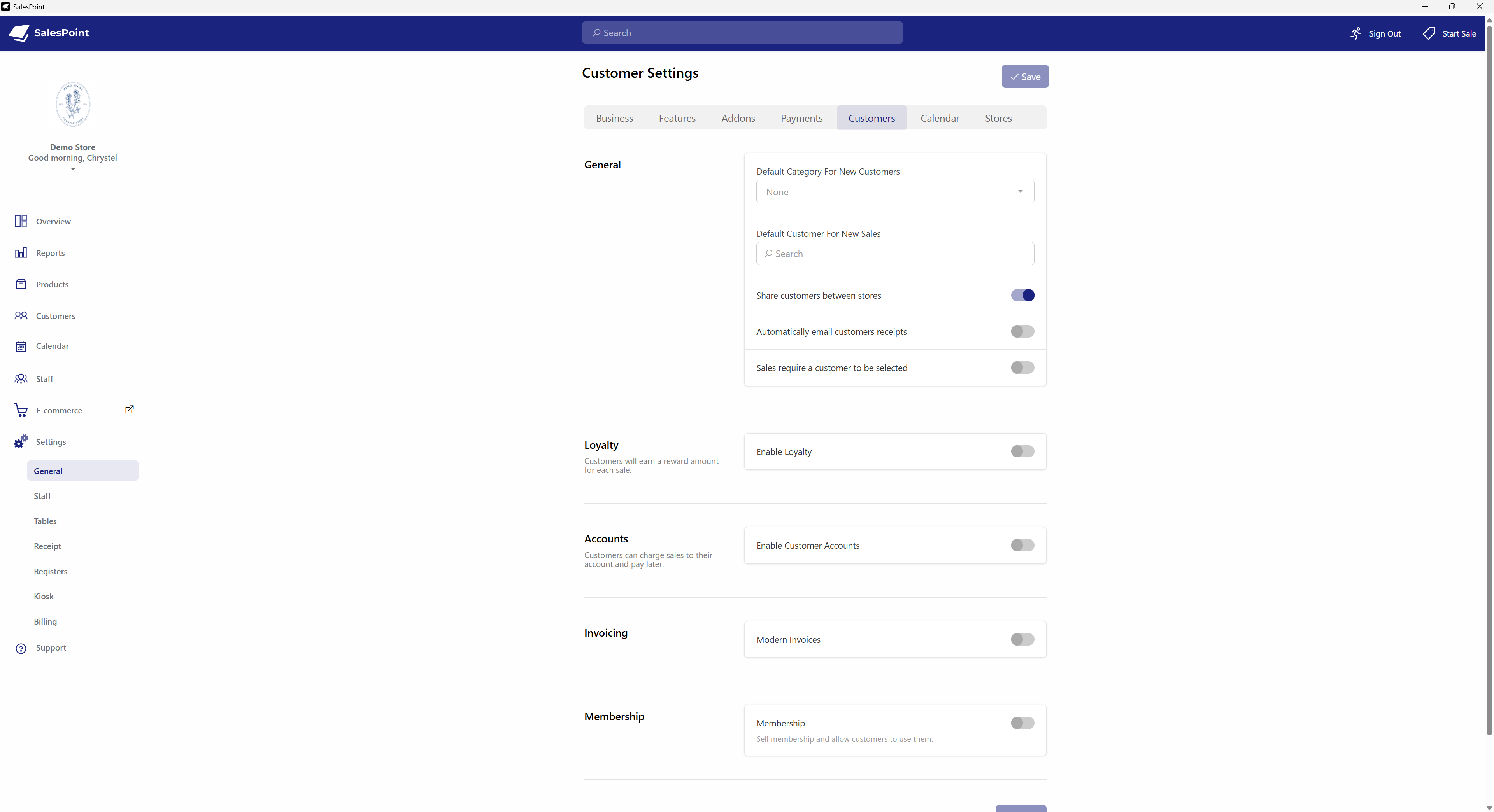
Figure 1: Enabling Memberships in Customer Settings.
Step 2: Create a Membership Category
1. Once Memberships are enabled, create a Membership Category.
2. Membership Categories can include customer benefits and rewards.
3. For example, you may create a category called "VIP Membership".
4. After creating the category, you can create Membership Products within it.
For example:
- Gold Membership
- Silver Membership
- Bronze Membership
Each membership product can have its own pricing and validity period.
5. Press "Save" once completed.
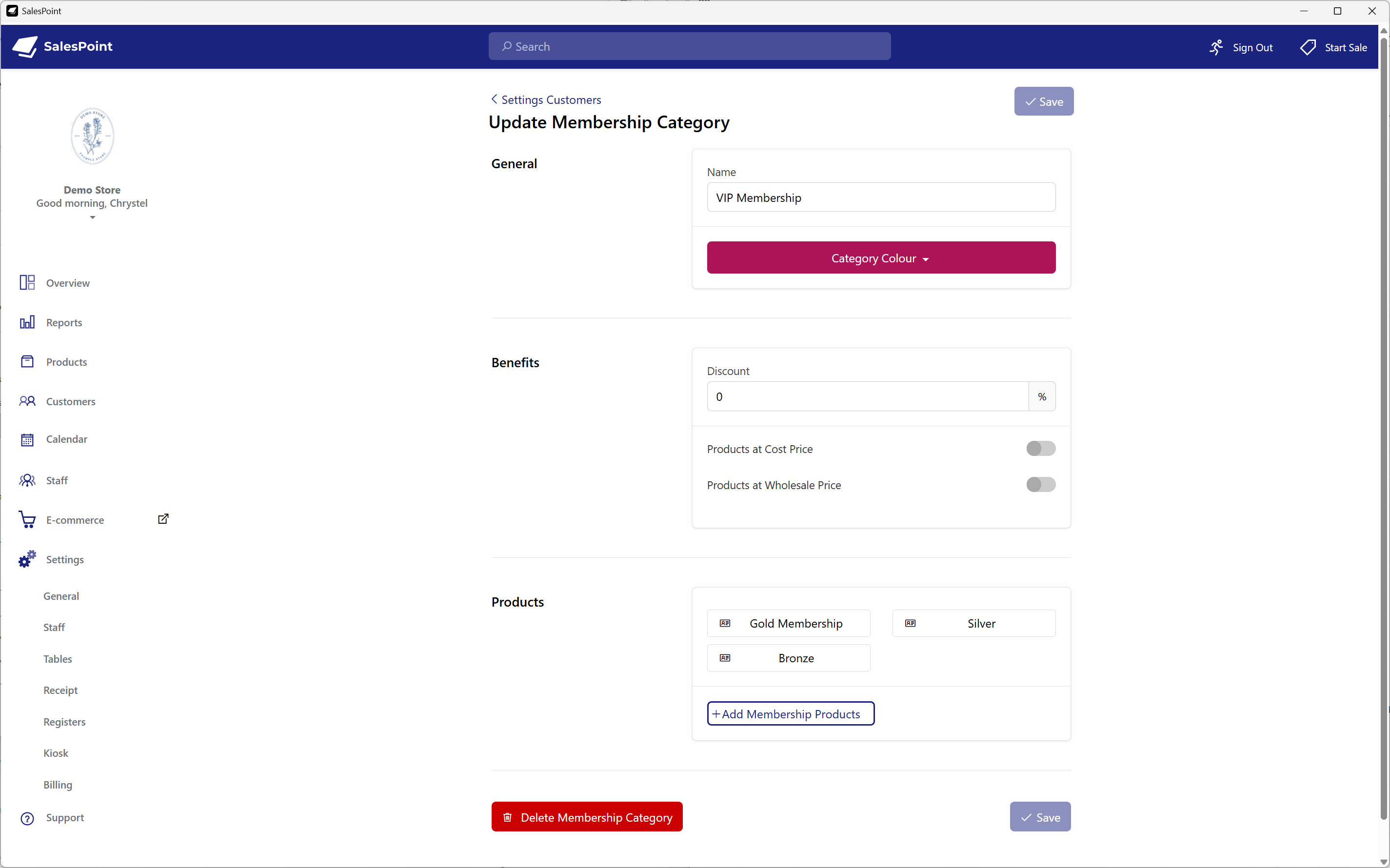
Figure 2: Creating Membership Categories and Membership Products.
Step 3: Sell a Membership to a Customer
1. Once the membership products have been created, navigate to the Sale Screen.
2. Select the Customer button.
3. Open the customer's Information icon.
4. Select the Membership section.
5. Select the Buy button. Choose the membership the customer would like to purchase.
6. Once selected, the membership will automatically be added to the sale.
7. Complete the payment process by selecting Pay.
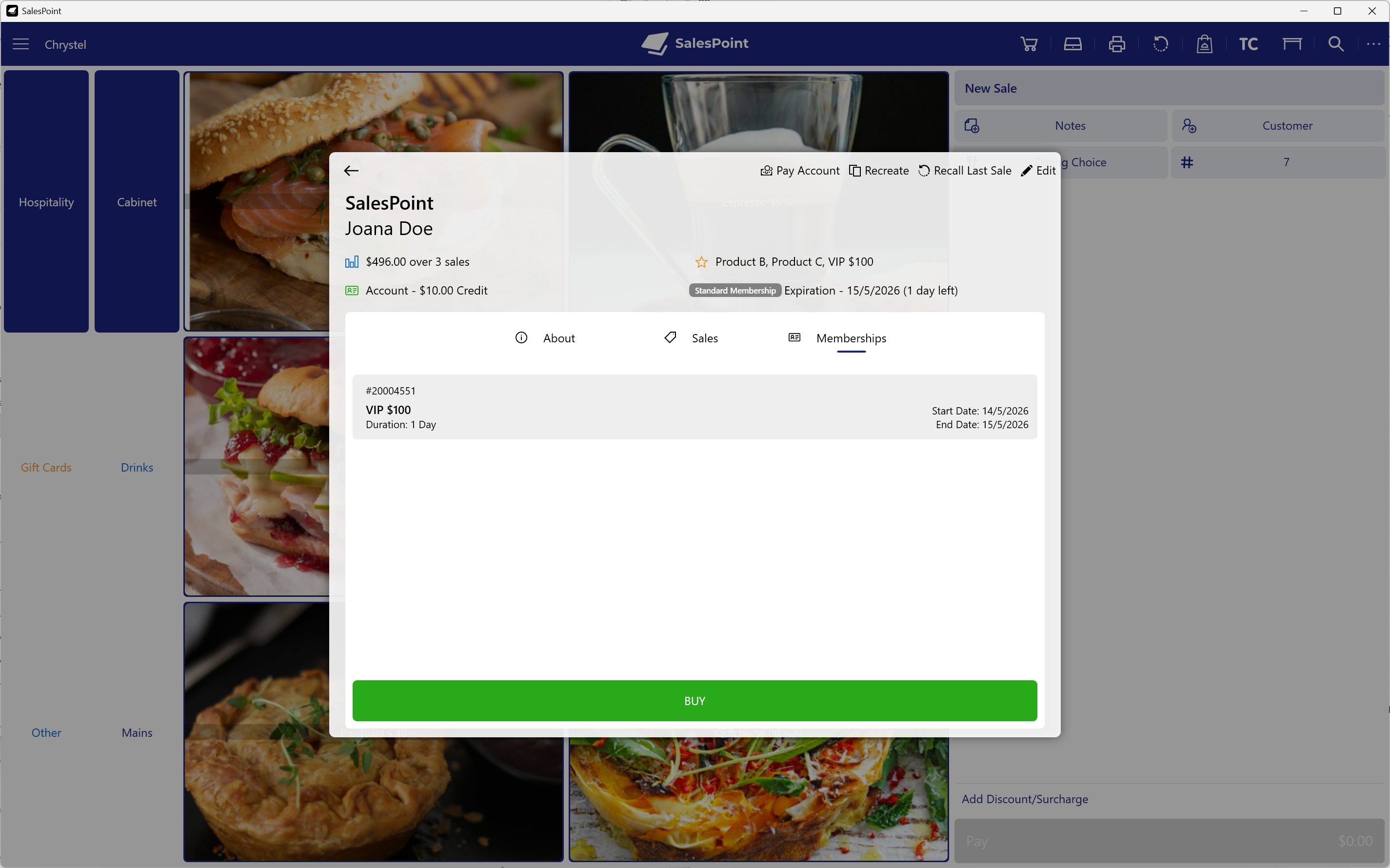
Figure 3: Purchasing a membership from the Sale Screen.
Step 4: View Active Memberships
1. After purchase, the membership will appear in the customer's profile.
2. On the Sale Screen, select the Customer icon again to view the active membership.
3. To view all memberships, navigate to Reports.
4. Select Customers.
5. Set the Report Type to Membership.
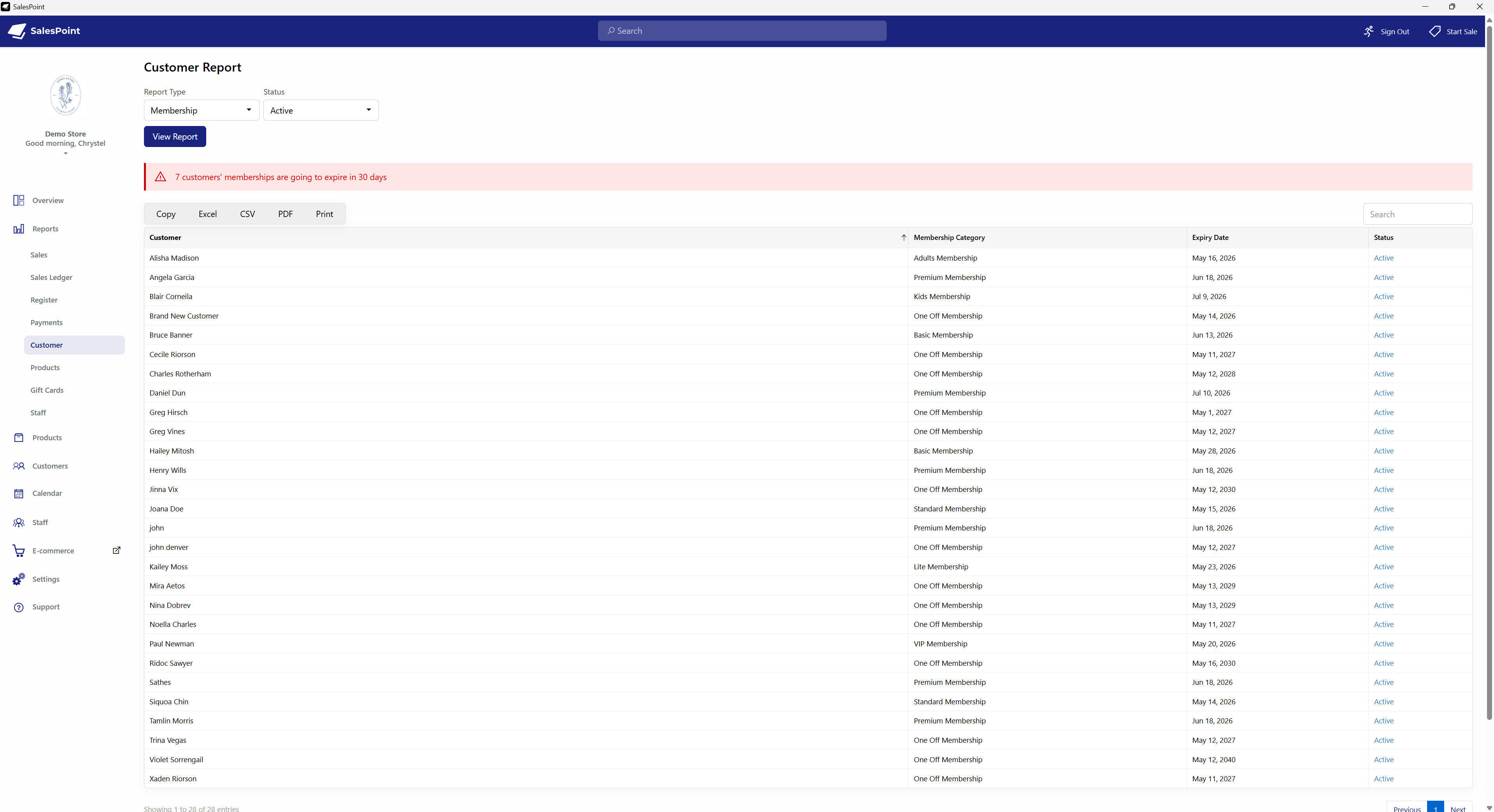
Figure 4: Membership Report in Customer Reports.
Refunding memberships is currently not supported.