Instead of printing kitchen dockets, SalesPoint can display kitchen tickets on an Android device using the Kitchen Display System (KDS). The KDS application must be installed on an Android device before setup.
Ensure products are configured to print to the kitchen. Refer to: Kitchen Ticket Printing
Kitchen Ticket Overview
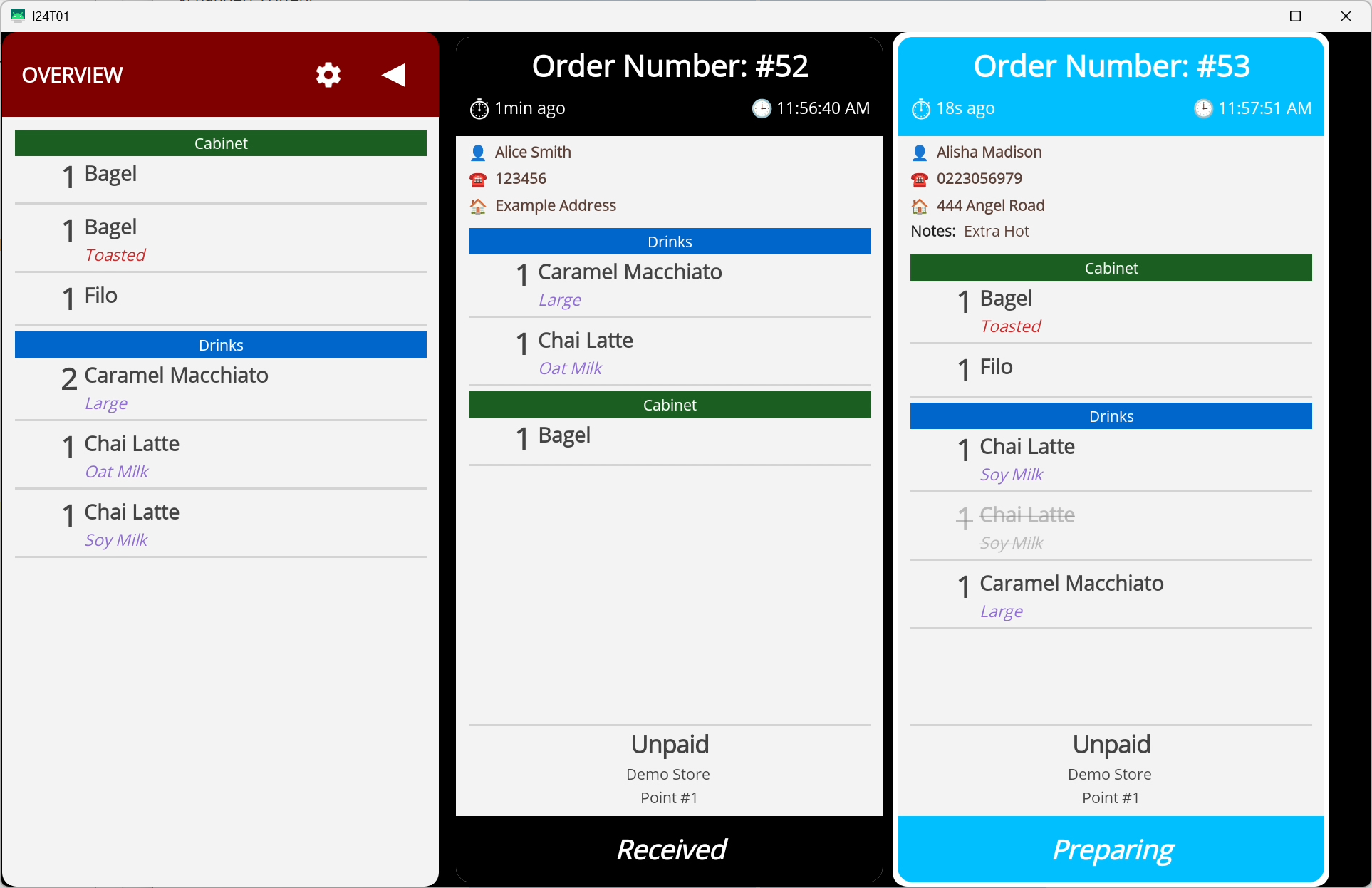
The Overview displays the total number of products across all active kitchen tickets.This count is combined across all dockets. For example, if there are five separate tickets and each contains one Chai Latte, the Overview will show 5.
As items are completed, the total decreases. If items are undone, the total increases.
Settings
Start In the Settings. Press the toggle next to the overview to open up this page.
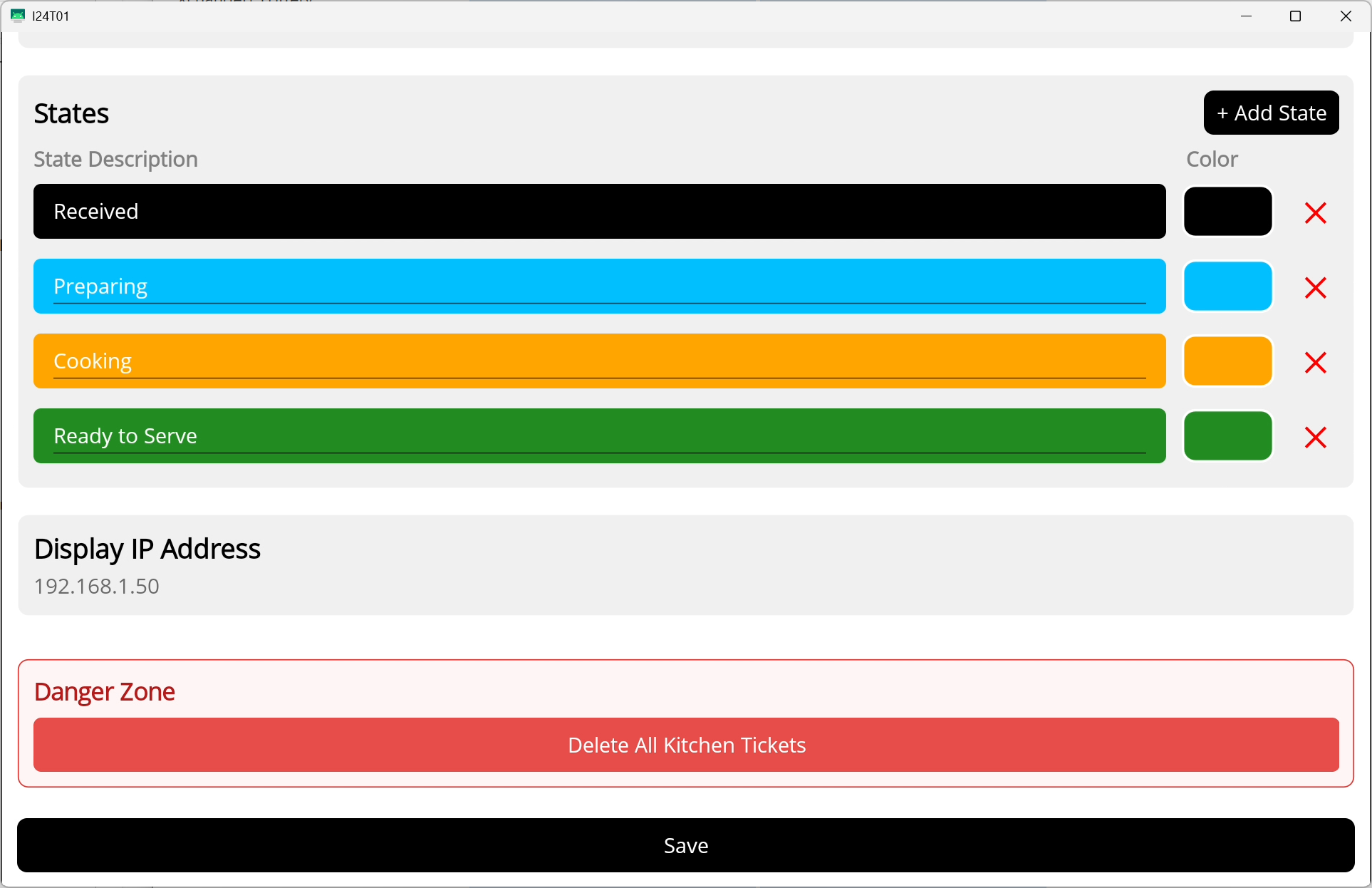
Kitchen Status
Kitchen Status defines the workflow stages for kitchen tickets.
You can create and customise statuses such as Received, Preparing, Cooking, and Ready to Serve. Each status can be assigned a colour to improve visibility and speed up kitchen operations.
Delete All Tickets
Removes all tickets currently displayed on the KDS screen.
Kitchen Tickets
Each order placed in SalesPoint is displayed as a kitchen ticket on the KDS.
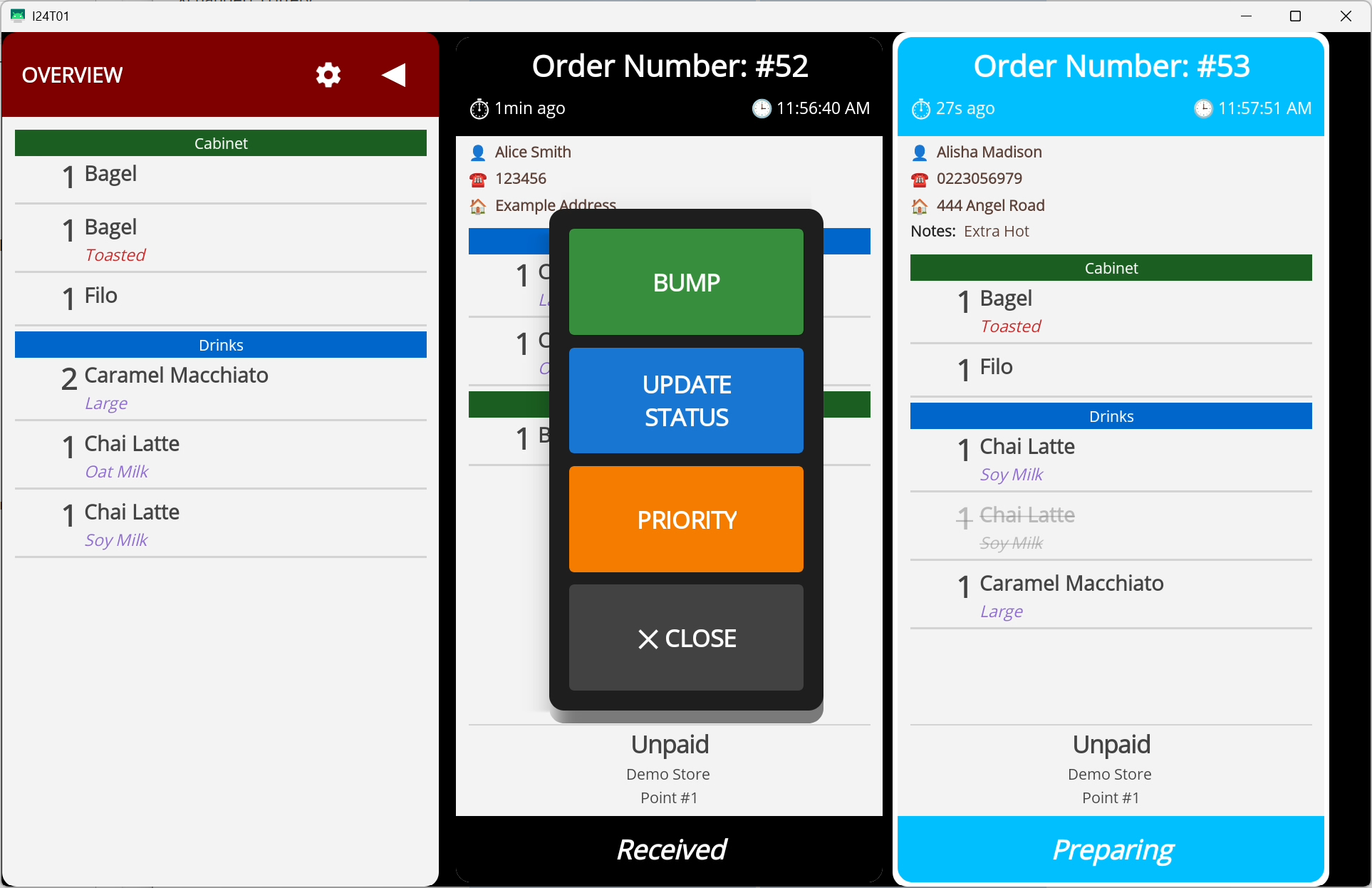
Header: Ticket Actions
Tap the header to open actions for managing the ticket.
Update Status: Change the current status of the ticket.
Prioritise: Move the ticket to the top of the queue.
Bump: Remove the ticket from the KDS once completed.
Body: Item Completion
Individual items within a ticket can be tapped to mark them as completed. Once all items are completed, a confirmation prompt will appear before the ticket is removed.
Footer: Ticket Status
Each ticket follows a workflow status that reflects its progress in the kitchen. Update the status by tapping the status label (e.g. Received), by selecting Update Status from the header actions menu, or by tapping the footer directly.
Connect KDS to SalesPoint
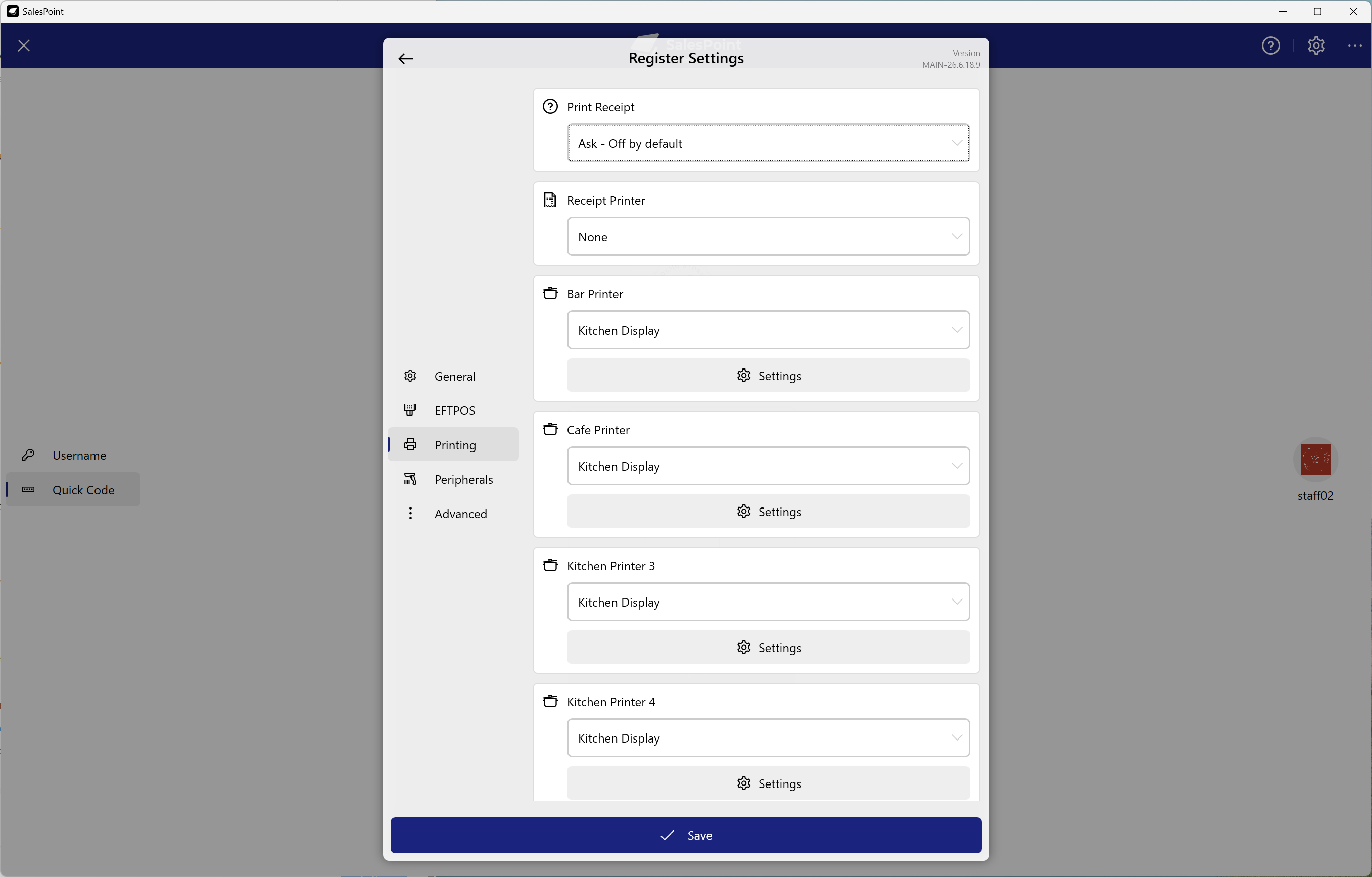
1. Open Register Hardware Settings and navigate to the Printing tab.
Instead of selecting a physical printer, choose Kitchen Display from the dropdown menu.
2. Click Settings and enter the IP address of the Android device running the KDS application.
The IP address can be found in the device Wi-Fi settings or within the KDS application settings screen.
3. Once connected, all products added to a sale will automatically appear on the kitchen display.